

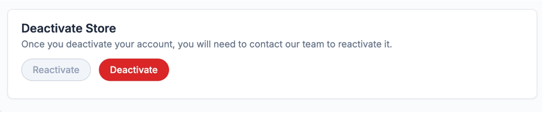
Deactivating a Store - This does not delete a Store and its information. Snap! Mobile will keep the data in case the user has questions or decides to reactivate it.
If you are wanting to deactivate your store through the Snap! Mobile app, please click here.
What deactivating a Store Does:
-
- Deactivating a Store makes it inaccessible via the subdomain URL.
- This feature is instantaneous. After deactivating the Store, the URL is no longer available.
- You as the user can still access the Store Dashboard when the Store is deactivated.
Steps:
-
Login to your Store dashboard
-
Select the store you would like to deactivate
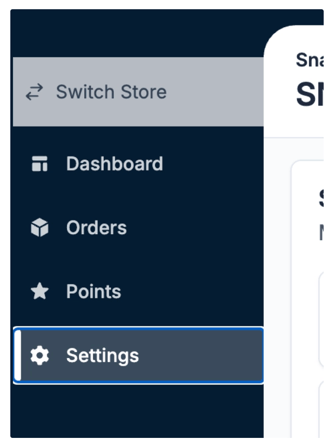
- On the left hand side, click Settings
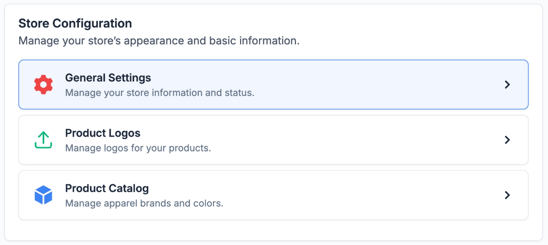
4. Click General Settings
If you are having issues deactivating your store, please reach out to support at support@snap.store. We will be happy to assist you!