
Adding players directly to the app portal is only needed if you are not utilizing the Snap! Manage platform or another integration that pulls your rosters.
In order to add a player to a roster, start by logging into your portal HERE.
Add a Player Directly to the Team
1. Start by searching for the event from the dashboard or visiting the App Content Tab in the left-hand navigation panel to interact with the Players Library.
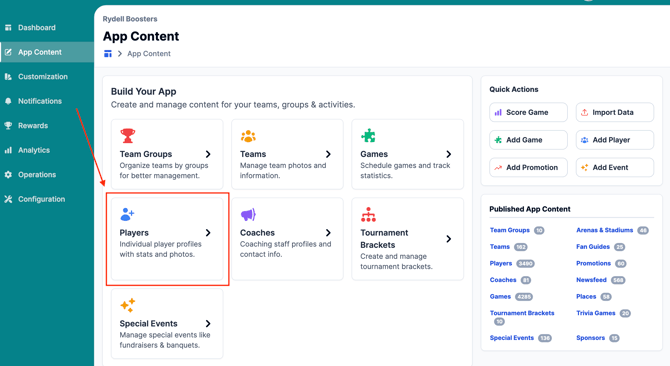
2. The Player List for all teams will pop up. From here, click the "+Add Player" blue button to add one player, or the upload arrow next to it to Import.
-
Imports can be an XML file or an Excel Spreadsheet. If importing, a template will be available for you to use upon clicking the Import button.
-
If adding a player using the "Plus" sign, fill out all required fields and then click "Create Player" to add!
NOTE: If Players need to be added to multiple teams, a new Player will need to be created for each team.
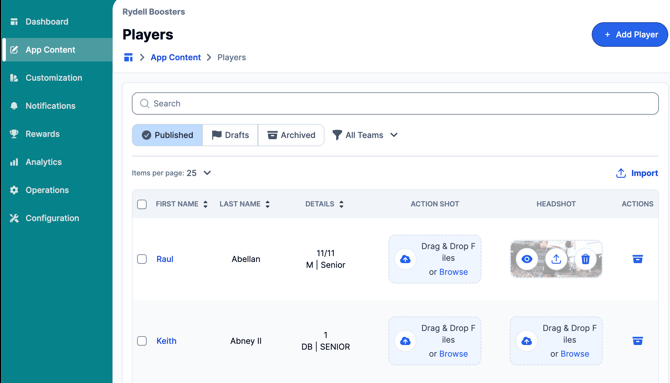
The following fields are required when adding a player:
- Team selection
- First Name & Last Name
*All additional player details can be added during creation, or edited at a later date.

Moving a Player to a Different Roster
If you make a mistake or need to move a player to a different roster, follow these steps:
1. Click on the Player from the Players list you would like to update to a roster to.
2. Click Edit Player in the Quick Actions section on the right side of the page.
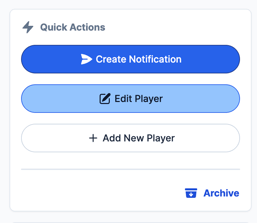
3. Edit the player details to select the new team via the team drop down section.
5. Click Save Player once finished!
Still have questions? Please submit a ticket to FanX Support via fanx.support@snapraise.com or reach out to your Account Manager.