

Following these steps will create a clickable Directions Link for events in your app, as well as event pages on the Site.
Set Up Directions Links for Select Facilities:
These apply to events created in the future
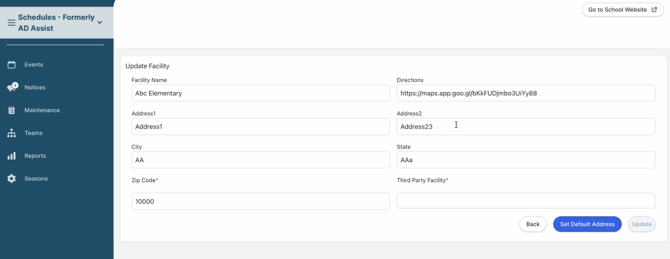
1. Go to the Schedules platform > Maintenance > Facilities- Select / Search the facility
- Add a Directions Link & Save
- You can use any Directions Link. The Share link from Google Maps is most popular.
- Select the Event
- Scroll / Search the Facility box
- Select the location(s) & Save
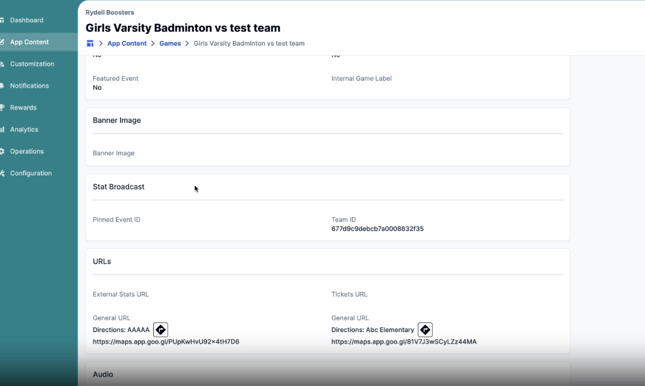
- It will now show on the Game page (Site and App)
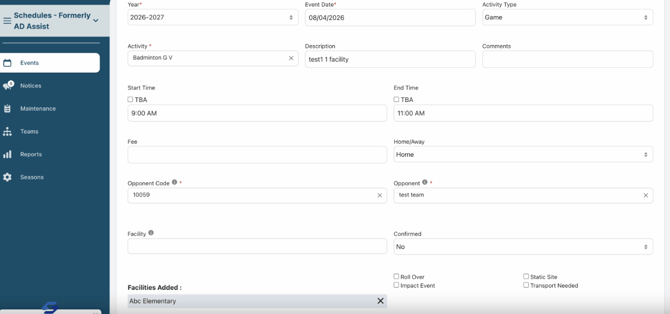
You can apply multiple facilities using the same steps as above!
To apply this retroactively to events that already exist:
1. Go to the Schedules platform > Events > Event Management- Adjust your date filters
- Search by Opponent
- Look for your Away games @ the Facility you’ve added the Navigation Link to
- Tip: Open each in a New Tab
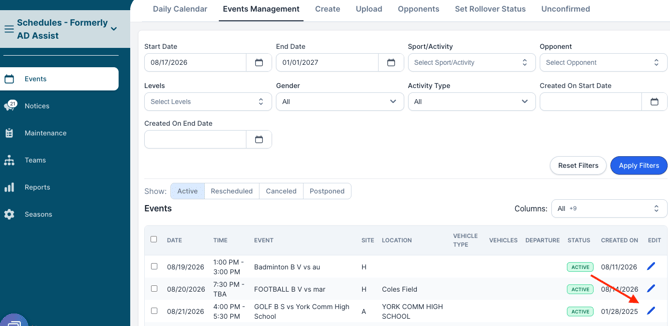
- Update the Facility box & Save
- This will refresh the data to include the Navigation link
Once the above is completed, you can view the link on the app portal and app!
Need Additional Help with Snap! Manage? For assistance with using the Snap! Manage platform or if you encounter technical issues, please reach out to our support team through the help features within the platform or our designated support channels (via the helpdesk widget, emailing manage.support@snapraise.com, or by phone at 276-531-9260, ext 3.)