
To view a demo walkthrough of this article, click here: Configuring Home Screen Cards: Merchandise, Tickets & Concessions
Fan Guide
To view your Fan Guide, click "App Content" and then "Fan Guide".
The Fan Guide can be used as a catch-all spot inside the app to house links, custom text pages, and deep links to other sections of the app.
%2009.35.10%20(1).png?width=371&height=807&name=Captura%20de%20pantalla%202026-09-08%20a%20la(s)%2009.35.10%20(1).png)
Some examples of Fan Guide cards include: Clear Bag and Stadium Policies, Staff Directories, Relevant Links from Your School's Website, Links to a Sponsor's Website, Athletics Hall of Fame, Awards, or Records
Adding a Fan Guide
Click the blue button at the top right to Add a Fan Guide.
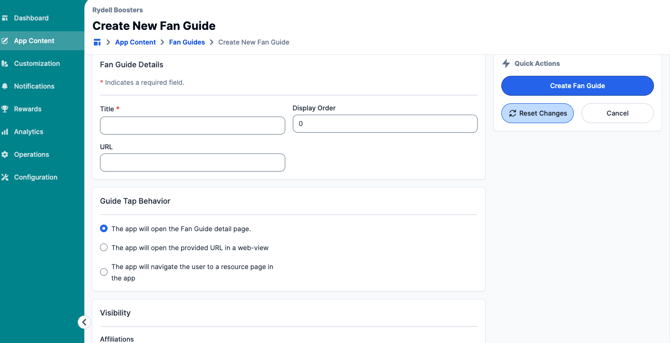
Guide Tap Behavior
- The app will open the Fan Guide detail page- most of the content in this card will be manual text that you add.
- The app will open the provided URL in a web view- This is a great option if you have any links you'd like users to have access to inside your app. It's also an easy place to start when creating and building out your Fan Guide. Some Fan Guide card examples using this Tap Behavior option: Relevant links from your school or district websites, Links to school-related events (homecoming, summer camps, etc.), and Links to streaming services.
- The app will navigate the user to resource page in the app- links users to another page inside the app.
Visibility
Similar to other pages inside the portal, you will have the option to make your Fan Guide content visible only to specific affiliations or audiences within your app. By selecting none of these boxes, your Fan Guide card will be visible to all users inside your app.
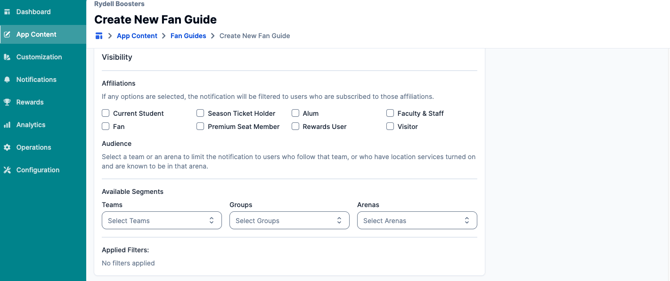
Be sure to click "Create Fan Guide" to publish and save your changes once done!
Merchandise, Concessions & Tickets Card
All of these options can be created as a Place. Follow the steps below to create them in your app portal.
Creating Your Team Store as a Place
You can add your Team Store as a Place by going to "App Content" and then "Places". Then "Create New Place":
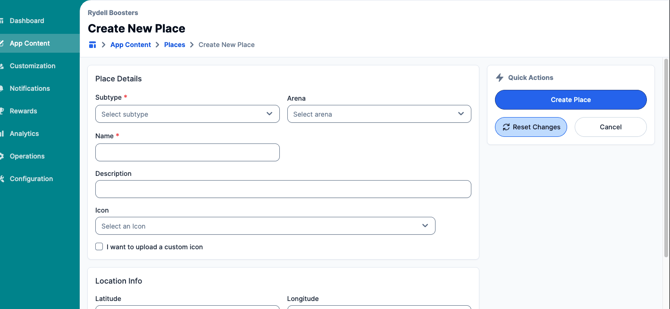
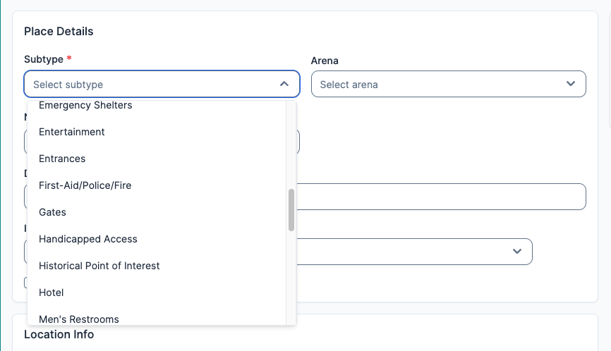
- Subtype: Here you can select a "type of place" from a wide variety of options.
- Arena: If the place you're creating is a physical store tied to an Arena or venue, you can select the Arena/venue from the dropdown.
- Name: Enter the name for your Team Store in this field.
- Icon: Used for pins dropped on the map if representing a physical location. Select the most relevant icon for your place.
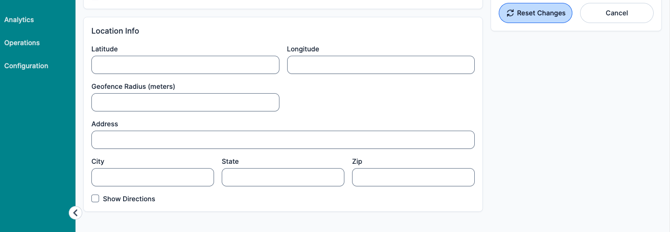
If you have a physical Team Store and want to add its location to the map page of the app, fill out the corresponding fields for Location.
Click "Create Place" to save and publish your changes!
Tickets
Whether your Tickets are accessed via a physical box office or online, they can be set up here in the Places section
-
Subtype: Select the most relevant subtype from the dropdown; in this case we'll choose Tickets/Box Office.
-
Arena: If it's a physical Box Office and tied to one of your Arenas/Venues that's in the Portal, select it from the dropdown under Arena. Not needed for online ticketing.
-
Name: Enter the name for your Ticketing content in this field. This could be the name of your physical venue, or simply "Tickets" if it's a ticketing link.
-
Icon: Used for pins dropped on the map if representing a physical location. Select the most relevant icon for your place.
-
Location Info: If you have a physical Ticket Box Office and want to add its location to the map page of the app, fill out the corresponding fields.
Concessions
-
Subtype: Select the most relevant subtype from the dropdown, in this case we'll choose Concessions.
-
Arena: If it's a physical Concessions Stand and tied to one of your Arenas/Venues that's in the Portal, select it from the dropdown under Arena. Not needed for online concessions.
-
Name: Enter the name for your Concessions content in this field. This could be the name of your Concessions website, or simply "Concessions" if it's a physical stand.
-
Icon: Used for pins dropped on the map if representing a physical location. Select the most relevant icon for your place.
-
Location info: If you have a physical Concessions Stand and want to add its location to the map page of the app, fill out the corresponding fields.
Click "Create Place" to save and publish your changes!
Ensuring Your Cards are Visible on the Home Screen
1. Go to "Customization" on the sidebar navigation and then "Themes".
2. From here, you can drag and drop to reorder cards on your app and toggle on cards such as tickets and concessions.
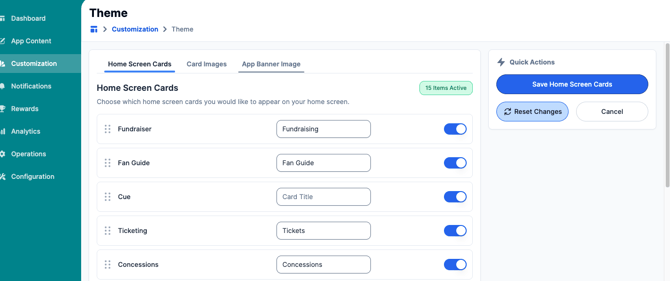
3. Click "Save Home Screen Cards" once finished!
News Feed
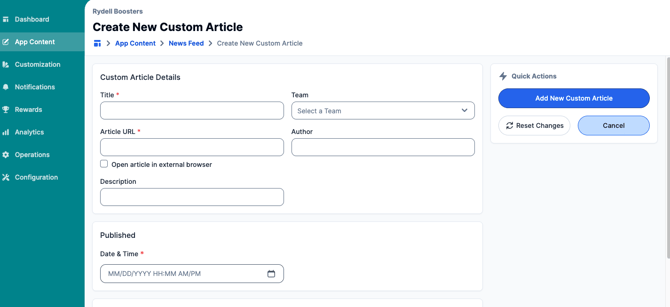
You can locate your news feed by going to "App Content" and then "News Feed". Then click, "Add Custom Article".
If you have a website integration through Snap! Manage, Presto, or Sidearm, your website's Custom/Team Articles will automatically pull over to your News Feed here in the Portal.
Custom Articles are individual articles and news stories that can be published to your News Feed. Fill in all relevant details on this page and click "Add New Custom Article" to publish and save your changes! You can also add videos under "News Videos".
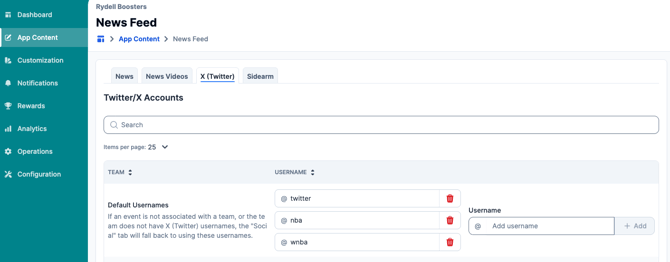
Adding X (Formerly Twitter) Accounts
Your school's Twitter accounts can be configured to your News Feed. To get started, click the Twitter tab. On this page, you'll add all of your school's Twitter accounts that you'd like inside your News Feed. User's news feeds will be curated based on what teams they follow, or what filters they choose inside the app. There is also a "Default Usernames" section, which means if an event is not associated with a team, or the team does not have X (Twitter) usernames, the "Social" tab will fall back to using these usernames.
Still have questions? Please submit a ticket to FanX Support via fanx.support@snapraise.com.