
Cloning notifications allows users to quickly replicate a previously sent notification, saving time and effort when creating similar messages. When cloning a notification, all details from the original notification are copied over, including the deep link, but without the scheduling information.
How to Clone a Notification:
-
Log into your FanX Portal and navigate to the Notifications section.
-
Filter by Sent Notifications:
- On the notification page, use the Sent filter to display only the notifications that have already been sent.
-
Locate the Sent Notification:
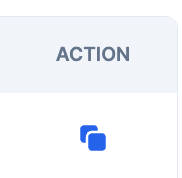
- Once the sent notifications table is displayed, look for the Actions column.
-
Click the Clone Button:
- In the Actions column, you’ll see a blue 'Clone' icon.
- Click the icon.
-
Edit the Cloned Notification:
- A new notification window will open, pre-filled with all the details from the original notification, including the deep link.
TIP: Make sure to check all fields and edit any relevant information before scheduling the notification.
Summary Of The Benefits of Cloning Notifications:
- Save Time: Quickly recreate notifications without having to enter all the details manually.
- Consistency: Ensure that similar notifications maintain the same content and deep link for consistency across communication.