
Difference Between Team Cards and Team Banners
-
Team Cards: These are the scrolling list of Teams that appear when you click the "Teams" button in the app. Example of team card image below:
%2009.34.23.png?width=417&height=907&name=Captura%20de%20pantalla%202026-09-08%20a%20la(s)%2009.34.23.png)
-
Team Banners: These are displayed both on the home screen of the app and on a Team’s detail page. Example of team banner image below:
%2009.34.35.png?width=407&height=884&name=Captura%20de%20pantalla%202026-09-08%20a%20la(s)%2009.34.35.png)
How to Upload Team Cards & Team Banners
-
Go to App Content > Team Groups.
- Either "Add Team Group" in the upper right-hand corner or search/click into the existing group you would like to edit.
- You can also directly update Cards & Banners without clicking into the group
-
Under Media, you have two options:
- Card Image
- Banner Image
- Drag & Drop your image directly into the column and save your changes.
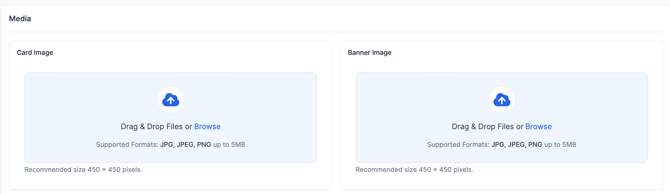
Card Note: For optimal display, choose a vertical/portrait photo with dimensions of 450x900 pixels.
Banner Note: For best results, use a horizontal/landscape photo with dimensions of 800x450 pixels.
Best Practices for Team Cards & Banners
- Team Cards:
- Use action shots of athletes to showcase the team's energy.
- A high-quality, clear image always looks best.
- Team Banners:
- Opt for a group photo that represents the whole team.
- Ensure the image is high quality and clearly shows the team as a unit.
- General Tips:
- Avoid over-cropping images, as sizing may vary based on the user’s screen.
- Consider updating photos annually to keep the app looking fresh and engaging.