
If you do not have access to Microsoft Excel, you can easily use our templates on Google Sheets by importing the File, then exporting the completed version back into Excel format.
Import our Template into Google Sheets:
- Download the template from the App Portal
- Open a New Template on Google Sheets
- Click File > Import
- Select the downloaded Portal template
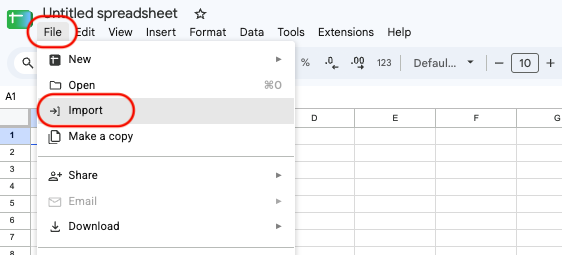
5. Enter your data on the template, then follow the Export steps to convert it back into an Excel file
Export the Template from Google Sheets:
With your completed spreadsheet open on Google Sheets, click:
- File > Download > Microsoft Excel
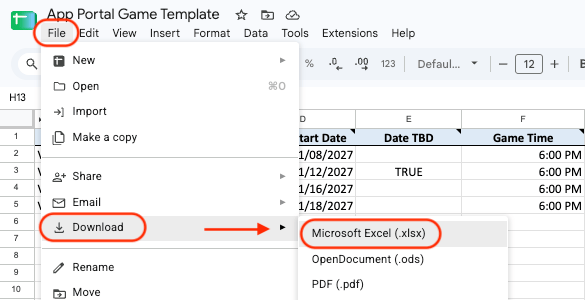 .
.
Steps to Upload & Publish on the Portal:
- On your Dashboard, scroll down to Quick Actions > Import Data
- Follow the page prompts to confirm your Data Type (Excel), Template Type (Game, Roster, etc.) and Team for the Upload, then
- Select the completed file
- Click Start Import
- The next page reviews your data - any errors will need to be corrected
- Click Finalize Import (scroll to the bottom of the page - not available if there are errors)
- PUBLISH your upload so it’s visible in the app:
- Go to App Content > Games, Special Events, Players, etc (based on your template type)
- Click on the Drafts folder
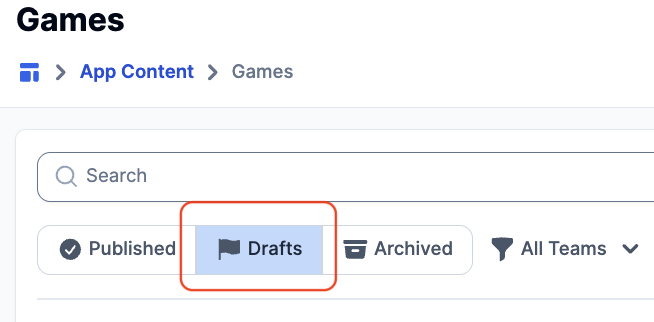
3. Mass-select or choose which need to be published
4. Scroll to the bottom of the page and select “Publish” to show them in the app
If you are still having issues please contact support at fanx.support@snapraise.com!