
Flash! Raise is a new way to add excitement to an existing fundraising campaign. Fundraiser group leaders can launch a focused 10-, 20-, 30-minute, or custom giving sprint and display donations and progress toward a goal on a big screen or TV.
Donors can scan a QR code, give instantly, leave comments, compete for top donor status, and watch the progress update in real time.
How Flash! Raise works
A quick, focused giving event that can boost your existing fundraiser or stand on its own.
-
Set a short sprint
-
Choose 10, 20, 30 minutes, or a custom duration.
-
-
Set a specific goal
-
Choose a target for the live giving event.
-
-
Make giving easy
-
Supporters scan a QR code to donate instantly.
-
-
Watch progress live
-
Donations, comments, and progress update on screen.
-
Before you get started
Flash! Raise can be added to any active fundraiser and can be used to boost an existing campaign or created as a standalone giving event.
A Snap! representative will build the fundraiser page as they normally would, including setting the date(s). The Group Leader must complete the required financial profile and any other information needed for the fundraiser.
At minimum, the financial profile is required to run a Flash! Raise. Submit it at least 48 hours before the event so everything can be verified in time to accept donations!
If the fundraiser will not have participants, please reach out to your representative or support@snapraise.com to hide the participant section from the donor checkout page.
Important: Flash! Raise cannot be scheduled in advance at this time. The page is created when the event is ready to start.
Who can create a Flash! Raise?
Only logged-in Group Leaders and Snap! Reps can create a Flash! Raise page.
Once the fundraiser is ready, either user can set it up in just a few easy steps. Setup can be completed minutes before the event starts.
Set up a Flash! Raise
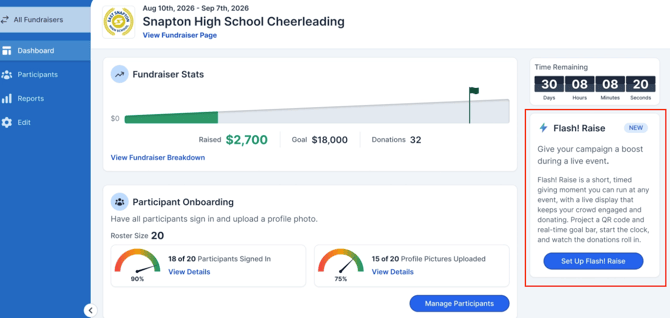
- From the Group Leader Dashboard, find the Flash! Raise section on the right side of the page.
- Click Set Up.
- Complete the four setup steps below.
- Review the preview and click Go Live when ready.
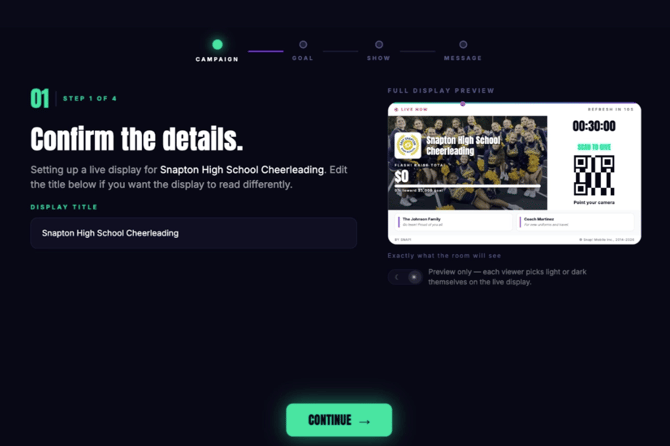
Step 1: Confirm the details
The campaign name will automatically populate. You can edit it to display the event name or a specific title on the screen.
For example, you might change the title to “Senior Night Giving Sprint” or “Help Us Reach Our Goal!”
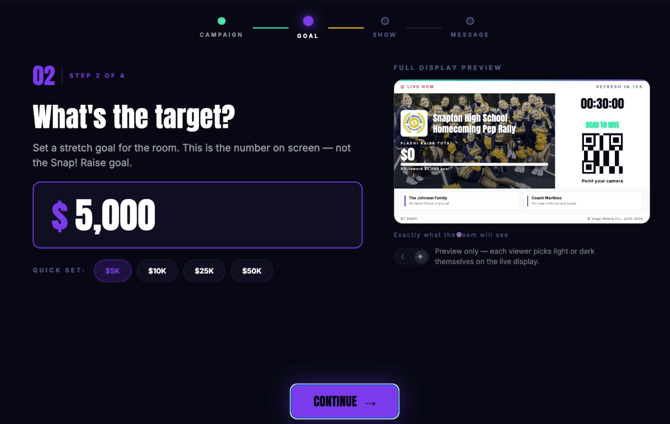
Step 2: Set the target
Enter the amount you want to raise during the Flash! Raise.
This goal does not need to match the overall fundraiser goal. It should reflect what you want to raise during the live giving period.
You can select a suggested amount or enter a custom amount.
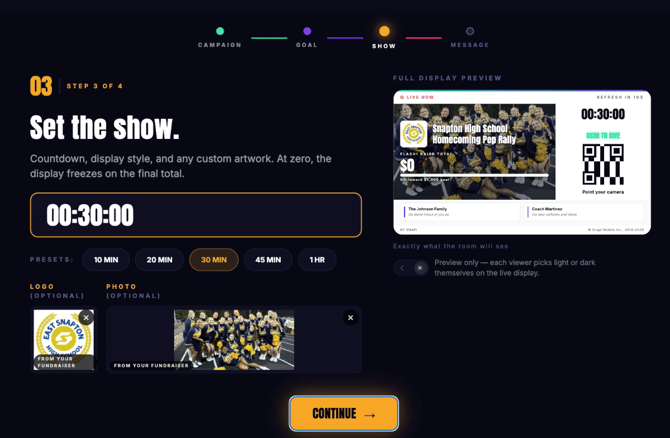
Step 3: Set the show
Choose how long the giving sprint will run.
You can select a suggested duration of 10, 20, or 30 minutes, or enter a custom number of minutes.
Keep in mind that Flash! Raise is designed to create urgency and excitement. It is not intended to run for hours or days.
The fundraiser image and first gallery photo will automatically populate on the display. You can remove or replace them as needed.
Step 4: Add a note
The Group Leader name and donation copy from the fundraiser will automatically populate.
You can edit the note to fit the event, encourage donations, or share a specific message with supporters.
Preview and display options
As you complete each step, the preview on the right side of the setup page will update.
You can choose to display the Flash! Raise in light or dark mode, depending on the screen and environment.
Once all four steps are complete, click Go Live to launch the event.
Display the Flash! Raise
Flash! Raise can be displayed on any screen that is capable of screen sharing or opening a web URL, including:
- TVs
- Monitors
- Digital scoreboards
- Other compatible displays
Use the display during the event so supporters can see the QR code, live donation activity, comments, and progress toward the goal.
After the event goes live
Once the Flash! Raise is live, the Group Leader Dashboard will update.
From there, users can:
- Copy the display link to share or open elsewhere.
- Have other logged-in Group Leaders open the display.
- Share the display across multiple screens.
This makes it easy to keep the giving sprint visible throughout your event.
Frequently asked questions
Can I add Flash! Raise to an existing fundraiser? Yes. Flash! Raise can be added to any active fundraiser.
Does the Flash! Raise goal need to match my fundraiser goal? No. The Flash! Raise goal should be specific to what you want to raise during the live event period.
Can I schedule a Flash! Raise in advance? No. Flash! Raise cannot be scheduled in advance at this time. It is created when you are ready to start.
How long should a Flash! Raise last? You can choose 10, 20, 30 minutes, or a custom duration. Flash! Raise is designed to create urgency, so it should be a short, focused giving sprint—not an event that runs for hours or days.
Who can create a Flash! Raise? Only logged-in Group Leaders and Snap! Reps can create the page.
How far in advance should I submit the fundraiser information? Submit the required financial profile and any other necessary information at least 48 hours before the event so everything can be verified in time to accept donations.
Can I use Flash! Raise without participants? Yes. If there will not be participants, reach out to your representative or support@snapraise.com to hide the participant section on the donor checkout page.
Can I display Flash! Raise on multiple screens? Yes. Once the event is live, the display link can be copied, and other logged-in Group Leaders can open the display to share it across multiple screens.
Can donors give directly from the display? Yes. Donors can scan the QR code to give instantly, leave comments, and watch the progress update in real time.
Ready to create a Flash! Raise? Open the Group Leader Dashboard, find the Flash! Raise section, and click Set Up when you are ready to start.