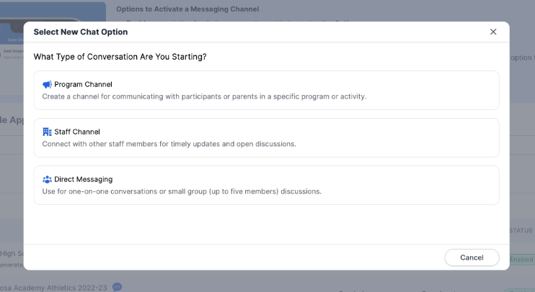
Messaging includes three different channel types:
-
Program Channel — Create a channel for communicating with participants or parents within a specific program or activity. This is best for team, group, or fundraiser-related communication.
- Staff Channel — Create a channel for communicating with other staff members. Use this for staff updates, discussions, and internal communication.
- Direct Messaging — Use Direct Messaging for 1:1 conversations or small group discussions of up to five members. Direct Messaging allows coaches, parents, and participants to communicate privately based on their applicable groups and permissions.
How to Enable/Disable Program & Staff Channels:
1. Login to Snap! Mobile here
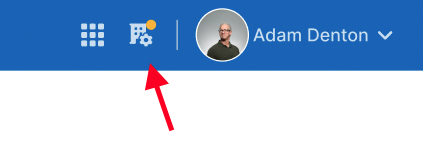
2. Click on the Organization Admin button in the top right corner

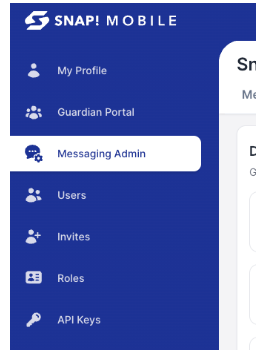
OR click on "Messaging Admin" on the left handside:
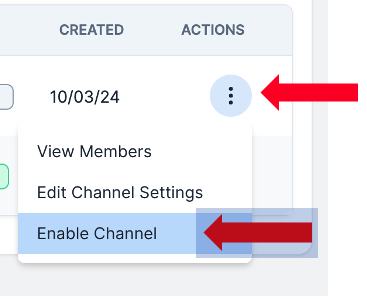
3. Click the three dots on the far right of the desired chat and click either 'disable channel' or 'enable channel'
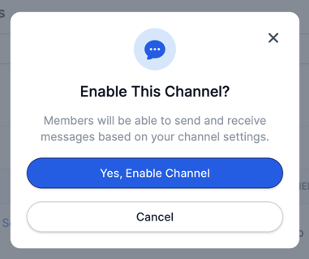
4. Be sure to confirm the action
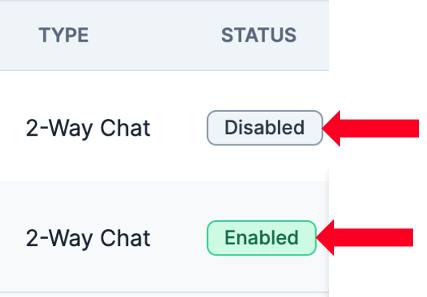
5. Once enabled or disabled, the chat will display the new status
How to Enable/Disable Direct Messaging
1. Navigate to Messaging Admin using the same steps outlined above. You can access it either through the Messaging icon at the top of your profile or from the left-hand sidebar.
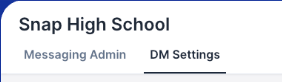
2. Click on "DM Settings" at the top
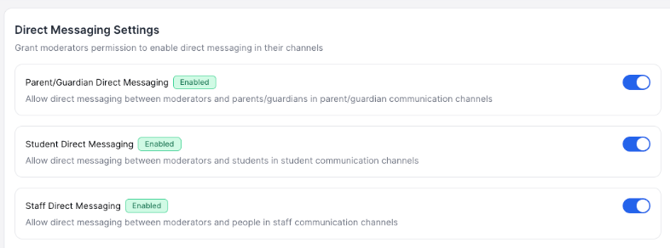
3. From here, you can toggle individual messaging features on or off based on your organization’s needs.
‼️ Important: These features are turned off by default. A Group Leader or Admin must manually enable them before they can be used.
If you have any questions about Snap! Messaging, please reach out to our support team at support@snapraise.com or at (276) 531-9260.