

The Reporting tab provides detailed insights into campaign performance and donations. It is organized into five reporting sections:
- Campaigns
- Settlements
- Schools/Affiliates
- Programs
- Donations
Please keep reading for a short breakdown on each reporting feature!
Campaigns
This tab is used to view and analyze fundraising campaign data.
You can:
- Search for specific campaigns
- Filter campaigns by:
- Organization
- Program Type (e.g., Football, Lacrosse)
- Status (Active, Closed, Upcoming)
- Date range (Start Date → End Date)
-
Export data via:
- Download/Print PDF
- Download/Print CSV
Can I sort the data?
Yes - the column headers (like Campaigns, Program, Status, Total Raised) show sort icons, meaning you can reorder the data.
What’s the purpose of the date filters?
They allow you to narrow results to campaigns within a specific timeframe, useful for:
- Monthly/seasonal reporting
- Comparing performance across periods
Settlements
The Settlements tab provides a transparent view of all payments issued to an organization from campaign donations.
This tool breaks down the following:
- Campaign payout method (check or direct deposit)
- The status of the payment (sent or failed)
- The amount sent
- And the date sent
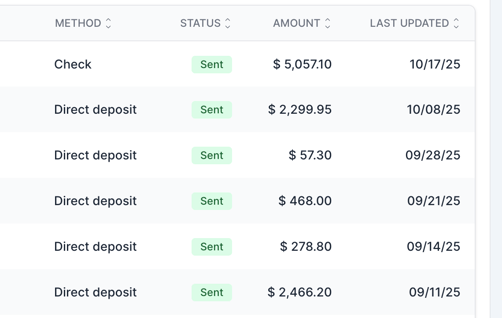
You also have the ability to download CSV or PDFs of the data.
Schools/Affiliates
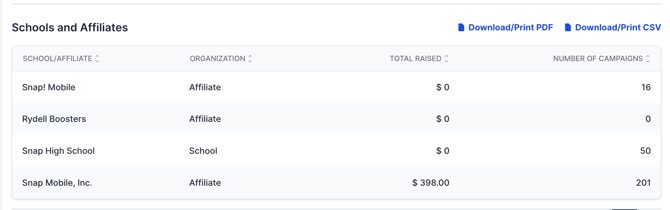
This tab provides a high-level view of organizations as a whole, rather than listing individual campaigns.
It displays general information about each organization, including any schools within the same district and any booster clubs associated with those schools.
You can view the organization type, the total amount raised across all campaigns under that organization, and the total number of campaigns associated with it.
Programs
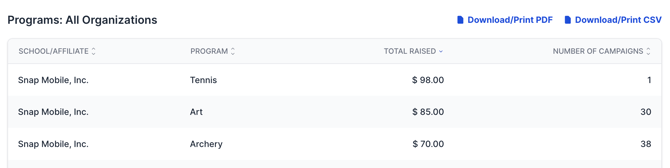
The Programs tab breaks out reporting based on the type of campaigns activity. For example: football, soccer, ASB, Art, etc.
Donations
This is the Donations tab within the Reporting section. It provides a detailed view of individual donations across all organizations and campaigns.
You can:
- Search for specific campaigns or donations
- Filter results by:
- Organization
- Program Type
- Start and End Dates
- Export the data using:
- Download/Print PDF
- Download/Print CSV
What information is shown in this report?
- School/Affiliate – The organization receiving the donation
- Donor – The name of the person(s) who made the donation
- Campaign – The specific fundraiser the donation was made to
- Program – The associated activity or sport (e.g., Cheerleading)
- Participant – The individual being supported by the donation
- Amount – The donation amount
The Reporting tab on your Insights dashboard provides a wide variety of report options you can generate.