

How to add users to Insights
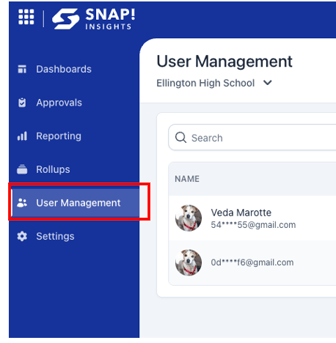
1. On the left hand side of your Insights dashboard, click User Management
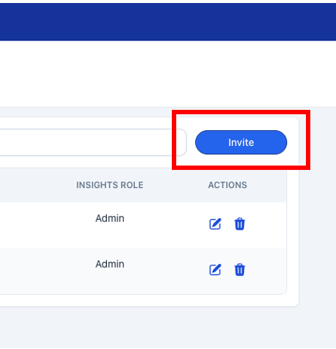
2. Click Invite in the top right corner
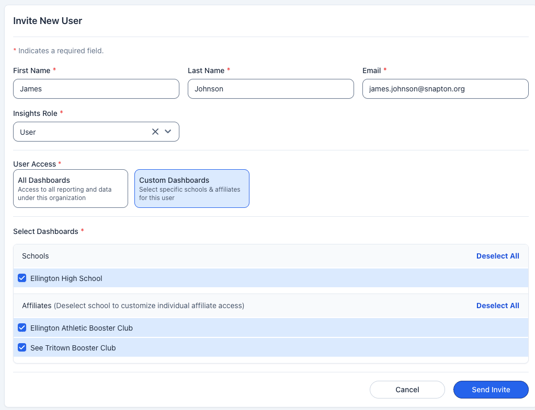
3. Enter the user’s name and email address
- From here, you can specify and adjust if this user should have access to all dashboards, or only certain dashboards
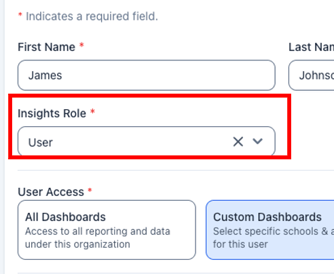
‼️ Important notes:
- Admins have access to all schools and affiliates associated with the organization AND access to User Management
- Users can be configured to access all dashboards while not having access to User Management or custom dashboard permissions
- Please keep this in mind when you are assigning permissions to this new user
4. After clicking Send Invite and email will be sent to the invited user
- If the invitee already has an account, they're granted access to Insights for that organization immediately
- The user MUST create an account with the email that they were invited with. If the invitee does not have an account, they will be prompted to create one and will then be routed to Insights with their assigned permissions
If you have any questions about User Management, please feel free to reach out to our Support team at support@snapraise.com. We're happy to help!