

- Log in to Registration.
- Click the Registrations tab on the left side navigation panel.
- Use the filter boxes at the top of the page to select specific information or student(s) you would like to view or print.
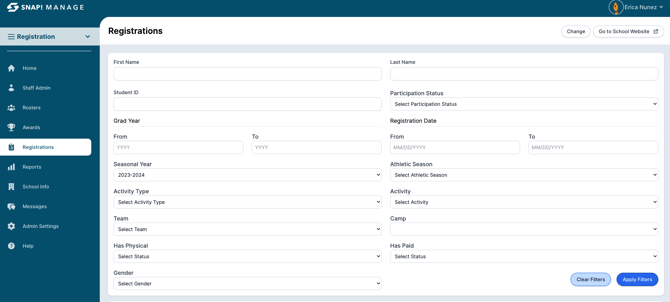
- Click the 🔹blue Apply Filters button.
- The list of specific student(s) information you selected in the filter boxes will populate at the bottom of the page.
- Click the 🔹blue PDF Registrations Report to view and print a PDF document of the information you selected.
Filter Boxes
- First and Last Name: specific student information
- Participation Status: Students who have a specific participation status
- From/To Year: Student information between specific years
- From/To MM/DD/YY: Find student information between specific dates
- Season Year: Student information in a specific season year
- Athletic Season: Student information in a specific Athletic Season
- Activity Type: Student information based on activity type (i.e. events, camps etc.)
- Activity: Student based on activity (i.e. band, baseball, softball etc.)
- Team: Student information based on specific teams
- Camp: Student information based on camps
- Has Physical: Student information based on physical status
- Has Paid: If collecting with Manage - student information based on paid status
- Gender: Student information based on a specific gender
CSV vs PDF report download
There are two download options for a report pulled from the Registrations page: CSV or PDF, listed under the filter options and before the Registrations list:

The CSV will include more information than a PDF. The key differences are that the CSV will include all Registration information, including the registration date, and the date the legal forms (if applicable) were signed. It will also include transfer information and even T-Shirt size. The PDF download, however, is a more simplified overview, and only includes the following:
-
Name
-
Student ID number
-
Paid status
-
Activity name
-
Team/Camp name
-
Physical Date
-
Concussion Date
-
Class GPA
-
Gender
-
Manual Registration yes/no
If you are looking for more detailed information than the above list, we recommend downloading the CSV.
Need Additional Help with Snap! Manage? For assistance with using the Snap! Manage platform or if you encounter technical issues, please reach out to our support team through the help features within the platform or our designated support channels (via the helpdesk widget, emailing manage.support@snapraise.com, or by phone at 276-531-9260, ext 3.)