

To change your password, go to https://accounts.snap.app/login and Click Forgot Password?
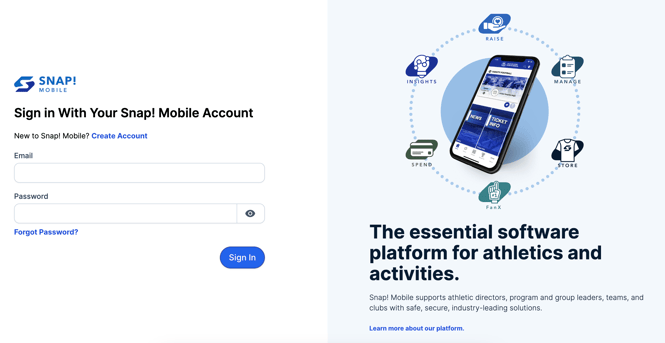
If you forgot your password, follow these steps:
- Go to accounts.snap.app
- From here, click the "Forgot your Password?" link.
- Enter the email address you used to sign up for Snap!
- Click the blue Reset Password button.
- We will e-mail you a verification code that you enter back on the website.
- Set a new password! Click the eye icon next to the field to show the password and make sure you're entering it correctly.
- Log in with your new password.
If you do not have an account with our Single Sign-on system, you will not receive a password reset email. If you do not receive an email, and it is not in your spam folder, please try creating an account.
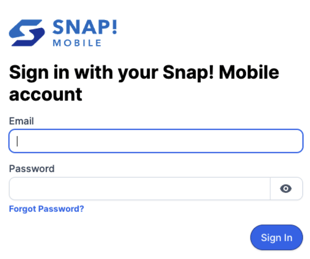
Here is an example of the process and some more helpful tips if you're running into problems:
-
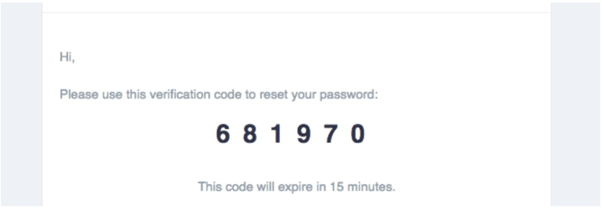
Look for an e-mail from Snap! with your verification code. It may take a few minutes to arrive, so if you don't see it in your inbox right away, give it a minute or two.
-
Copy that code and enter it back in the Verification Code box on the Snap! site. Make sure you use the code from the most recent e-mail! If the code is not being accepted, see if you have another email with a newer code. This will take you to a field where you can enter your new password.
-
To ensure you set your password correctly, we recommend clicking the eye icon next to the password field. This will reveal the password so you can be sure you have it written down correctly.
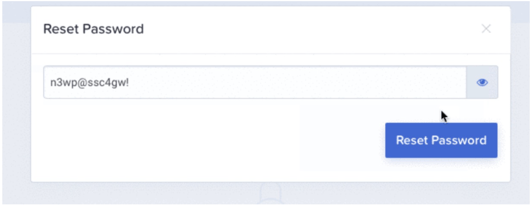
With that, your new password will be set, and you can log in to your Snap! Account
Still have questions or need help? Please reach out to us directly at manage.support@snapraise.com or by phone at 276-531-9260 option #3.