
/Manage%20(Support)/Type=One%20Line%2c%20Product=Manage%2c%20Style=Full%20Color.svg)
Administrator Resources
Having Physical Uploads ON in Registration is optional; however, the default is set to ON for all schools.
To turn the Physical Upload feature ON follow the steps below:
Note: This request option is only available to School Administrators. Physical Uploads are controlled by the school. If you are a parent, and you do not have the option to upload a physical (as shown in the article), then your school does not utilize this feature within Snap! Manage, and will you need to reach out to them directly.
- Contact Support at manage.support@snapraise.com to request that the Physical Upload feature be turned ON.
- Next steps when Turning ON and using the upload feature
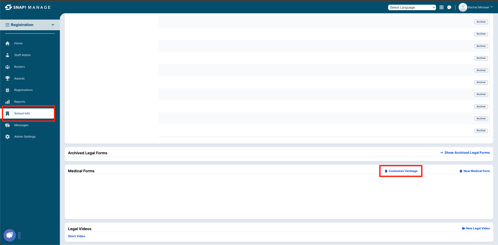
- Use the Custom Verbiage option under the School Info Medical Forms section to add instructions on how you plan to handle physicals. This will show under the Medical Forms tab on the Home tab for parents to view and also on the Medical page in the Registration process.
- Use the Lead In Message in each sport's Registration Set Up to further instruct parents how to upload the student's physical. See example below for a sample lead in message. You could also include this link to our parent instruction guide to assist parents.
How to Upload a Physical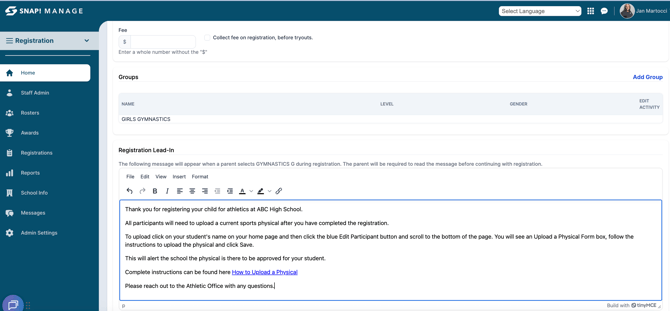
- Another option is to add an Urgent Message to show in a pop up box on your website for parents to see when they go to the Registration link.
To turn the Physical Upload feature OFF follow the steps below:
- Contact Support at manage.support@snapraise.com to request that the Physical Upload feature be turned OFF.
- Again, use the Custom Verbiage option under the School Info Medical Forms section to add instructions on how you plan to handle physicals. This will appear under the Medical Forms tab on the Home tab for parents to view, and also on the Medical page during the Registration process.
- Add information to the Lead In Messages in your sports Registration Set Up, or add an Urgent Message to inform parents on the school's policy for sports physicals.
Need Additional Help with Snap! Manage? For assistance with using the Snap! Manage platform or if you encounter technical issues, please reach out to our support team through the help features within the platform or our designated support channels (via the helpdesk widget, emailing manage.support@snapraise.com, or by phone at 276-531-9260, ext 3.)