
If you are hearing of or experiencing issues with checking into events using the Rewards program, please check these items to troubleshoot the issue:
Check Game Points
1. From the sidebar navigation, click "App Content" and then "Games".
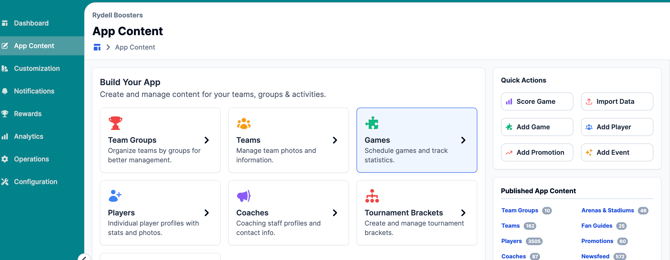
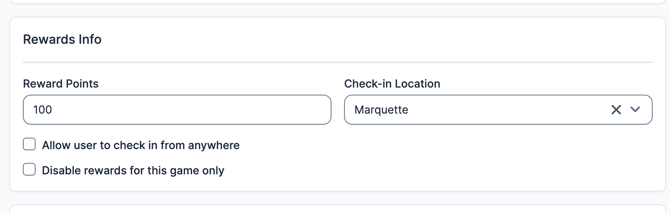
2. Locate the Game you are looking to troubleshoot. Click "Edit Game" and scroll down to the "Rewards Info" section.
3. Ensure there are points added here as well as a check-in location.
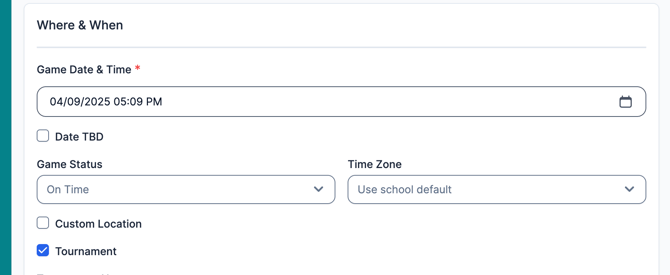
4. Scroll back up to the "Where & When" section and make sure the "Custom Location" is unchecked. Rewards points cannot be obtained at a custom location, as it overrides the arena & stadium already selected.
Check Arena & Stadium Geofencing
In the ‘Arenas & Stadiums’ section located under "App Content" on the portal, make sure the arena is flagged as ‘Rewardable’. The arena must also have a Lat/Long and a Geofence Radius set (150 is standard, but you can make it as big or small as you see fit). For more information on troubleshooting Geofencing, please see the following article: Troubleshoot Geofenced Promotion Not Showing
On the User's Device:
- Check to see if the user has location services disabled in App/Phone Settings. If location services are turned on, checking the map in the app should show where the GPS is pinging the user. Occasionally, with bad cell service/Wifi, a user can be pinged outside of the check-in location
- Check to see if the user is properly signed in to their Rewards account
- Verify that they do not show a sign-in request when they visit the rewards page:
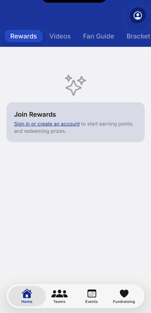
- Verify that they do not show a sign-in request when they visit the rewards page:
- Have the user completely close out of the app and log out/log back into their account
- As a last-ditch effort, have the user delete the app, then re-download the app
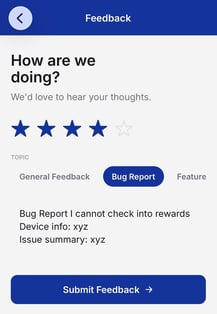
- If it is still not working, have the user submit a Bug Report through the app's Feedback section (under their profile) and reach out to Snap! Mobile Customer Support with any additional information about their device that they can provide.
If the issue still persists, please submit a ticket to FanX Support via fanx.support@snapraise.com.