

This article reviews how to send Pre-Approvals from the Insights dashboard. If you're unsure what Pre-Approvals are, please review this article.
How to send Pre-approvals:
1. From your Insights Dashboard, select your school or organization from your dashboard
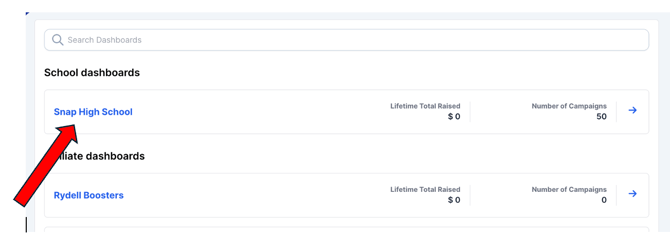
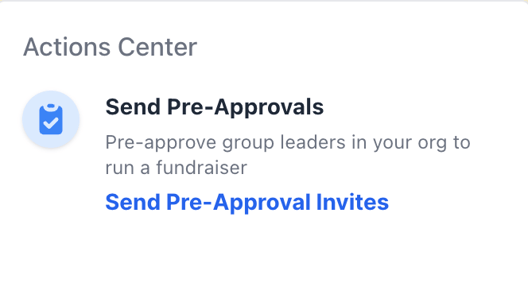
2. Access Pre-Approvals from your Actions Center. Simply click Send Pre-Approval Invites
3. From this page, you can begin adding contacts one at a time.
❗️First name, last name, email, and activity type are required.
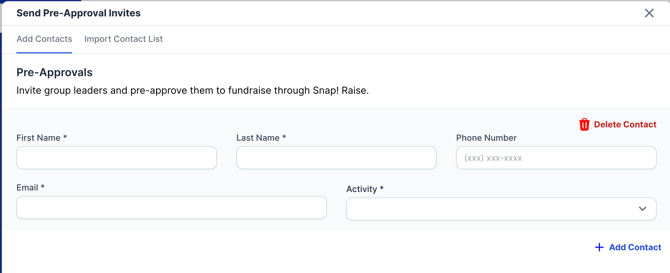
4. Click Send Invites button
If you see a❗️or are unable to click the Send Invites button then your template and data in Insights do not match